App manual
No Sound? How to Fix Voiceover Tones
Silence during a ritual is the most common thing people write to us about, and in almost every case it is one of five things. Work down this list in order and stop when the sound comes back.
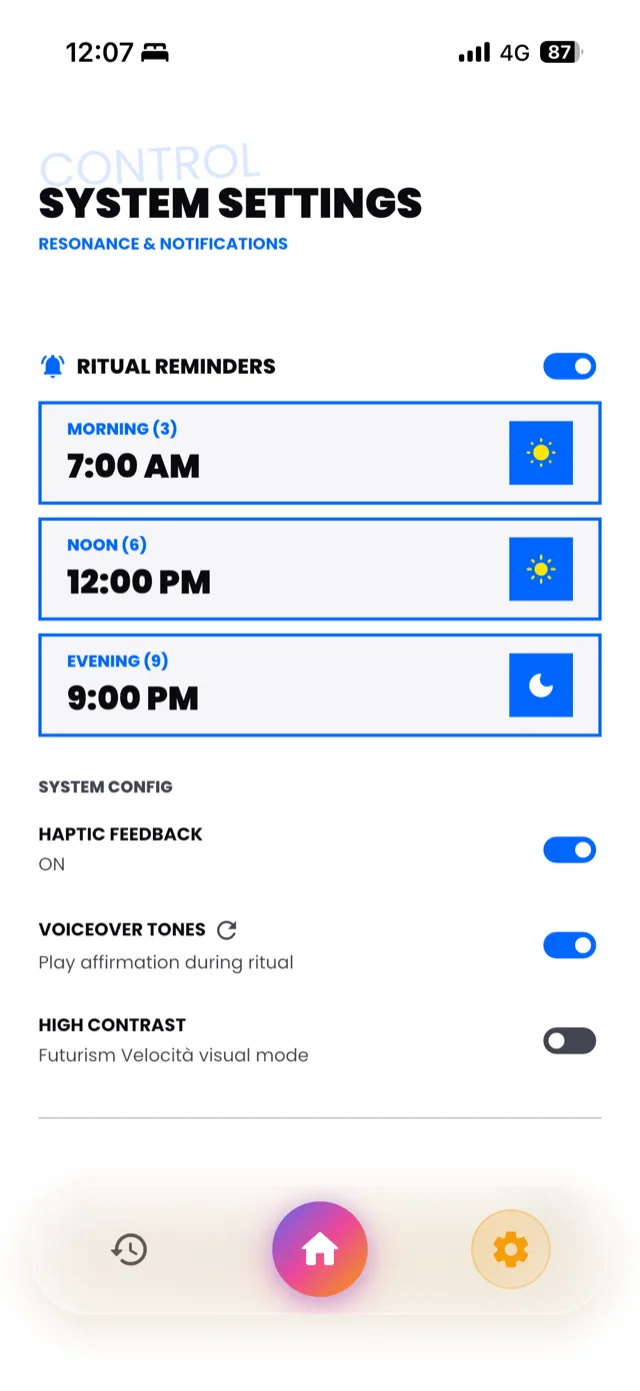
The settings screen. Voiceover Tones sits under SYSTEM CONFIG, with the refresh icon just to the right of the label.
1. Check the toggle is on
Open the settings screen, headed CONTROL, and find the SYSTEM CONFIG section. There is a row called VOICEOVER TONES, described underneath as Play affirmation during ritual. It has a toggle on the right.
If that toggle is off, no audio will play at any point, and nothing else on this page will help. Turn it on and start a session.
2. Press the refresh icon
This is the fix for most cases, and it is easy to miss because it is small.
Next to the words VOICEOVER TONES there is a refresh icon. Tapping it regenerates the spoken version of your affirmation from scratch and confirms with a short message when it finishes.
You need this whenever the audio and your text have fallen out of step, which happens most often after you have edited your intention. The app stores the spoken audio alongside the text, so a sentence that has changed since the audio was made can leave you with either silence or the previous wording. Refreshing rebuilds it against what your intention says now.
Give it a moment to finish before starting a session. If you change your intention again later, refresh again.
3. Rule out the phone itself
Two things on iPhone catch people out:
- The silent switch on the side of the phone. Depending on your iOS settings this can mute app audio entirely while notification sounds still work, which makes it look like a problem with the app.
- Volume routed somewhere else. If your phone is still connected to headphones, a car, or a speaker you walked away from, the audio is playing correctly, just not where you are. Check the output in Control Centre.
Raise the volume with the physical buttons while a session is running, not from the home screen, so you are adjusting media volume rather than the ringer.
4. Check your intention is not empty
The voiceover is generated from the text of your intention. If your intention is blank, there is nothing to speak. Open your intention, confirm there is a sentence saved, then use the refresh icon described above.
5. Restart the app
If all four of the above are correct, close the app completely, from the app switcher rather than just returning to the home screen, and open it again. Your intention, your streak and your completed sessions are stored on the device, so nothing is lost by doing this.
Still silent?
Some audio features are part of the premium tier, described in the app as Guided Audio Rituals. If you are on the free tier, the guided audio rituals will not be available to you, though the basic voiceover toggle still is. See Premium, Billing and Cancelling.
If none of this works, get in touch and tell us which of these five steps you tried, what your iOS version is, and whether the refresh confirmation message appeared. That saves a round of questions.